 AnnexHub
How to handle walk-in guests who never registered for your event
Invitations get forwarded, so walk-ins are a normal case. Decide the policy before the day, keep the desk out of the scanning lanes, and register them into the same list as everyone else.
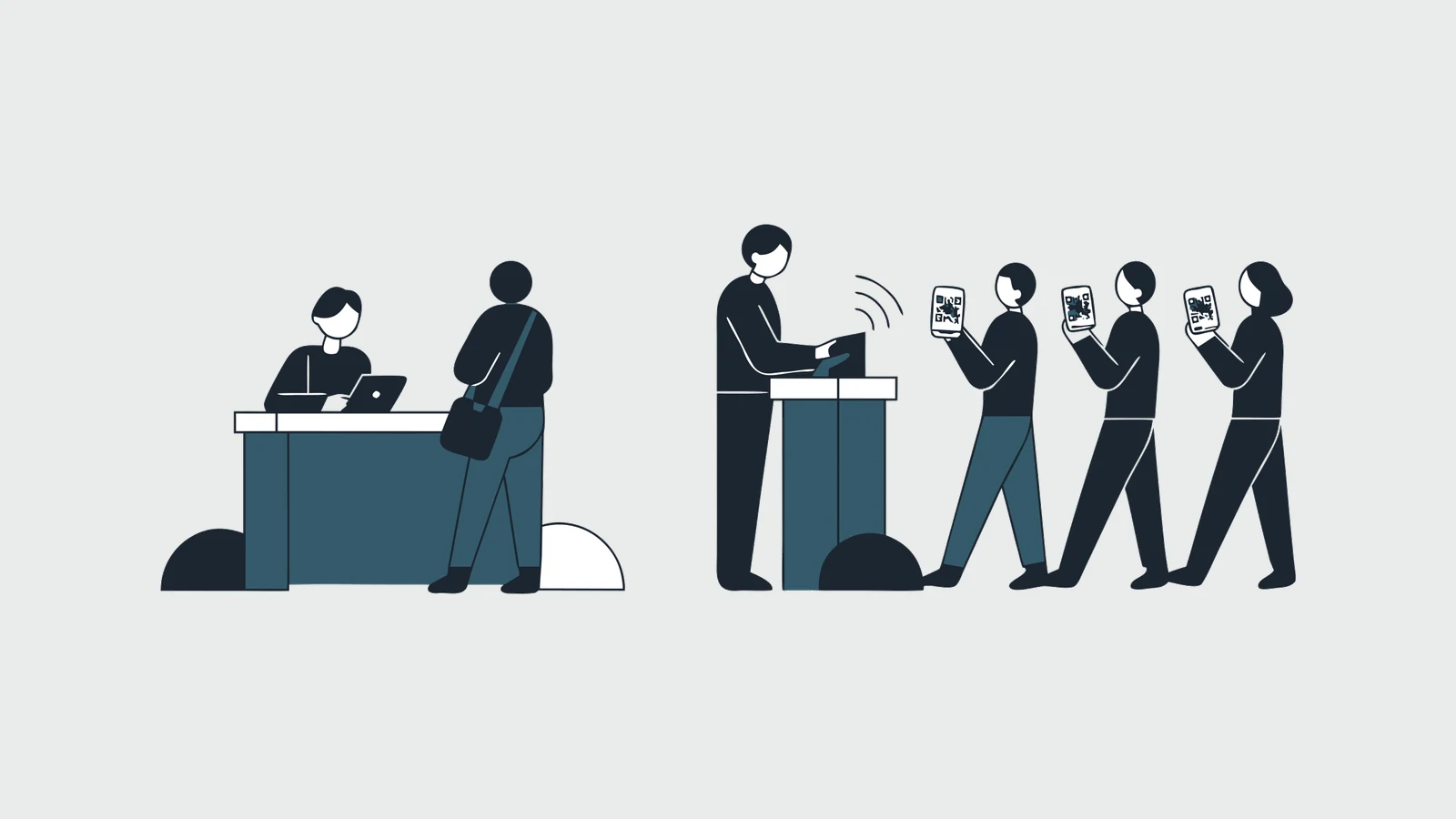
Corporate events run on invitations, and invitations get forwarded. A director brings two colleagues. The client's CEO sends their PA in their place. Someone registered under a personal email and turned up with a work one. None of these people are on the list, all of them are standing at the door, and the client is watching how you handle it.
An unregistered arrival is not a failure of the invitation. It is a measure of how far the invitation travelled. Treat walk-ins as a normal case and the door stays calm. Treat them as an error and your staff will reach for a notebook, and the number you report to the client afterwards will be wrong by the number of names in it.
Who actually turns up unregistered
Six kinds of people say "I did not register" at the door. They need different handling, and the first one is not a walk-in at all.
- The registered guest who cannot prove it. Registered under a different email, name spelled differently on the list, ticket eaten by a corporate mail filter. This is the most common "walk-in" of the day and the answer is a name search, not a new record. Look them up before you do anything else.
- The forwarded invitation. A colleague of an invitee, holding the invitee's email. Usually welcome. The client sent the invitation hoping it would travel.
- The substitute. The invitee could not come and sent someone in their place, often without telling anyone. Welcome for most events, a real question for seated dinners and restricted rooms.
- The plus-one nobody asked about. A spouse, a junior, a driver who was told to wait inside. Whether they come in depends on the policy you set before the day, not on how persuasive they are at the desk.
- The late registrant. Registered after the freeze, when badges were printed and the caterer's count was fixed. Operationally a walk-in, and handled as one.
- The uninvited. Media at a closed briefing, a competitor at a launch, someone the client specifically left off. Not the desk's decision. Hold, and call the named person.
Decide the policy before the day, not at the desk
The desk should never be deciding policy at eight in the morning with a queue forming. Pick one of three, write it in the run sheet, and brief the door on it.
| Policy | Use it when | What the desk needs | What to agree with the client |
|---|---|---|---|
| Open door | Seminars, showcases, town halls, anything where a bigger room is good news | Blank badge stock, the registration screen, a capacity number that stops it | The capacity, and the catering buffer |
| Approval at the door | Client dinners, launches, seated events, anything with a curated room | A named decision-maker reachable by phone all morning, and a place for guests to wait that is not the lane | Who decides, what qualifies, and what a declined guest is told |
| Closed list | Board events, security-screened venues, paid seats the client controls | A script for a polite refusal, and a way to capture the guest's details for next time | That the client's own staff will be turned away too, unless they are on the list |
Three numbers come with the policy. The venue's capacity is a hard stop, fire regulations do not negotiate. The seat count for a seated dinner is nearly as hard. And the caterer's number was fixed at the freeze, so agree a buffer with the caterer and the client before then, and write it down: how many extra covers exist, and who pays for them.
Set up the desk so walk-ins never touch a scanning lane
The scanning lanes exist to move registered guests at speed. One walk-in registered in a lane stops everyone behind them for a minute or more. So the walk-in desk is separate, it is never counted as a lane, and it exists at every size of event. The arithmetic behind that is in how many check-in lanes an event needs, and who should staff it is in the crew-sizing guide.
The desk needs five things:
- Your most capable person. Judgement, the authority to make a call within the policy, and the manners to refuse someone without an argument.
- A device with the full attendee record, online, logged in, tested that morning. The desk searches the list far more often than it creates a record.
- Blank badge stock, and either a printer or a good pen. A walk-in with no badge is a security problem for the rest of the day.
- The policy on one sheet, including the name and number of whoever decides the borderline cases.
- A sign. "Not registered, or no QR code? This way." Walk-ins take themselves out of the scanning lanes when you tell them where to go.
The procedure at the desk
Six steps, in this order, every time.
- Search first. Name, then company, then email. Most people who say they never registered are on the list, and a found record is checked in and badged in seconds.
- Establish which case this is. Who invited them, from which company, in whose place. Two questions, not an interview. This is what the policy sheet is for.
- Register with the minimum. Name as it should appear on the badge, email, mobile, company. The same fields as the online form and nothing more. The desk is the worst place in the world to collect dietary requirements from someone who was not expected.
- Assign a ticket type. Every attendee record belongs to one, so the desk needs to know which type a walk-in gets. For a paid event, decide before the day whether the desk records the seat as complimentary and someone else collects payment, or refuses.
- Check them in immediately, in the same record. Registering a walk-in and then forgetting to check them in is how the headcount ends up short by exactly the number of people who caused the most work.
- Badge, and point them to the room. Plan for about a minute per walk-in when the device is online and the badge is printed, and more if the badge is handwritten. If the desk is slower than that, something in steps one to four is missing.
Send the confirmation email when the guest wants it. Some do, for the QR code and the record. Some are standing there with a colleague and would rather not be emailed at all.
The uninvited, and the guest who should not be admitted
The desk never argues. If someone is on the closed list's wrong side, is press at a private briefing, or is the person the client left off on purpose, the desk holds them politely and calls the named person. That person decides, in person if they can. A door that turns someone away on its own authority has made a decision on the client's behalf, and the client will hear about it before you do.
The same rule covers the guest who is registered but should not come in, and the VIP who needs escorting: a named person, agreed in advance, not door staff. This is the third of the three exception types in the 500-pax runbook.
Where the numbers go wrong
Every walk-in that is written down instead of registered is a headcount error, a missing badge, and a name the client never sees. The failure modes are always the same.
- The notebook. The desk writes names in a margin. Nobody types them up. The final headcount is wrong by that many, and the client's report says fewer people came than actually did.
- The separate spreadsheet. Walk-ins live in a second file, the attendee export does not contain them, and two weeks later two numbers are in circulation and neither is trusted. One record, one list, no exceptions.
- The registered-but-not-checked-in. The desk creates the record and moves on. The guest is in the room and the report says they were a no-show.
- The paper never typed up. If the device failed and the desk fell back to paper, type it in the same week. Who owns your event data has the longer version of why that week matters.
After the event, walk-ins are their own line in the report, next to late registrations. A high walk-in count is not something to hide. It tells the client the invitation was forwarded, which is usually good news, and it is the argument for keeping registration open later next time. The post-event report shows where that line sits.
Walk-ins and the PDPA
Collecting a name, email and mobile number at a desk is still collecting personal data. The privacy notice that sits on the online form applies at the door too: show it on the device, or have it on a card at the desk, and never treat a walk-in's details as consent to marketing. The questions a client's procurement team will ask about this are in the attendee data questions procurement will ask you.
How this works in AnnexHub
The staff app has a Walk-in screen, available to the event organiser and their team members. It asks for name, email, mobile number and ticket type, with the confirmation email as an option. One tap registers the guest and checks them in, into the same attendee list as everyone who registered online, so the export and the post-event report include them without anyone typing anything up. If the email already belongs to a registered guest, the app refuses the duplicate and sends the desk to find the existing record instead, which is the first of the six steps above. A walk-in on a paid ticket is recorded as complimentary, so the money is a separate conversation, not a door delay.
The short version
Search the list before you create anything. Pick the door policy before the day and write it down with the capacity, the seat count and the catering buffer. Keep the walk-in desk separate from the scanning lanes, staffed by your best person, with a device that holds the whole record. Register with the same four fields as the online form, check the guest in immediately, and badge them. Never let the desk decide who the client did not invite. And put walk-ins on their own line in the report, because that number is the invitation working.
Try it on a real event
The free tier covers one live event up to 50 guests.
Registration page, QR tickets and door check-in, including the offline scan queue. Enough to test the door properly before you commit to anything.